
How to Extract Specific Pages from a PDF and Place them in Google Slides
Distance learning is our new normal. Many teachers are using Google Classroom to assign work. Students are doing their assignments on Google Slides. The difficulty is that many assignments are still in a PDF format. How do teachers extract pages from a PDF, put them into Google Slides, create ways for students to interact with them, and assign the pages in Google Slides?

I’ve gotten many questions. This post aims to answer some of those questions and goes into detail about how to extract pages from a PDF and use them within Google Slides. In addition, I’ll link to a few resources on how to create an assignment in Google Classroom.
Extract Specific Pages from a PDF
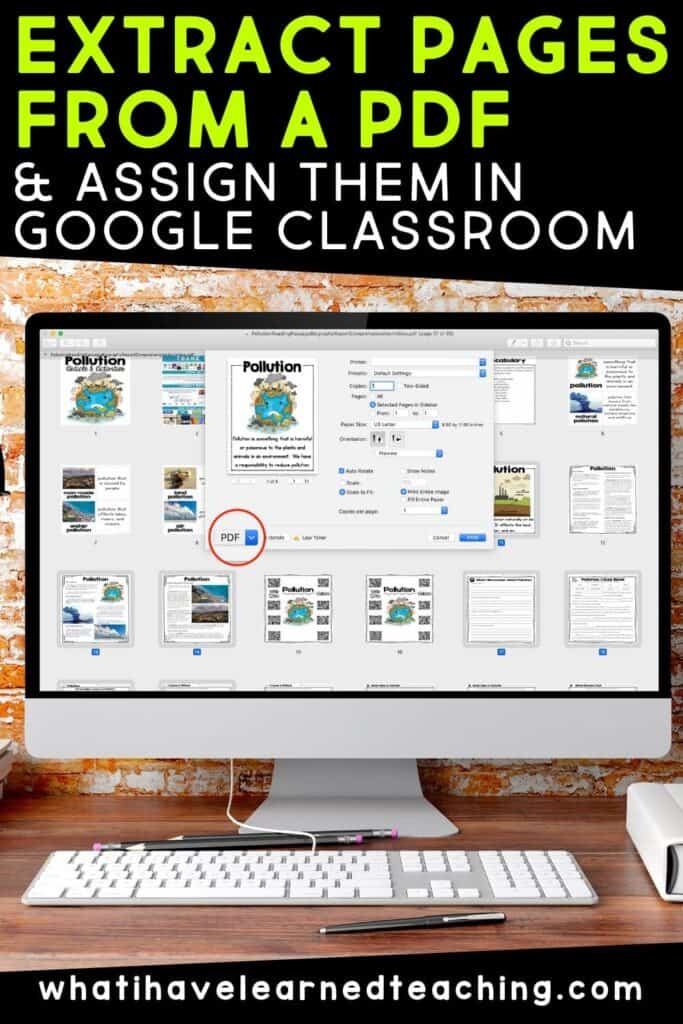
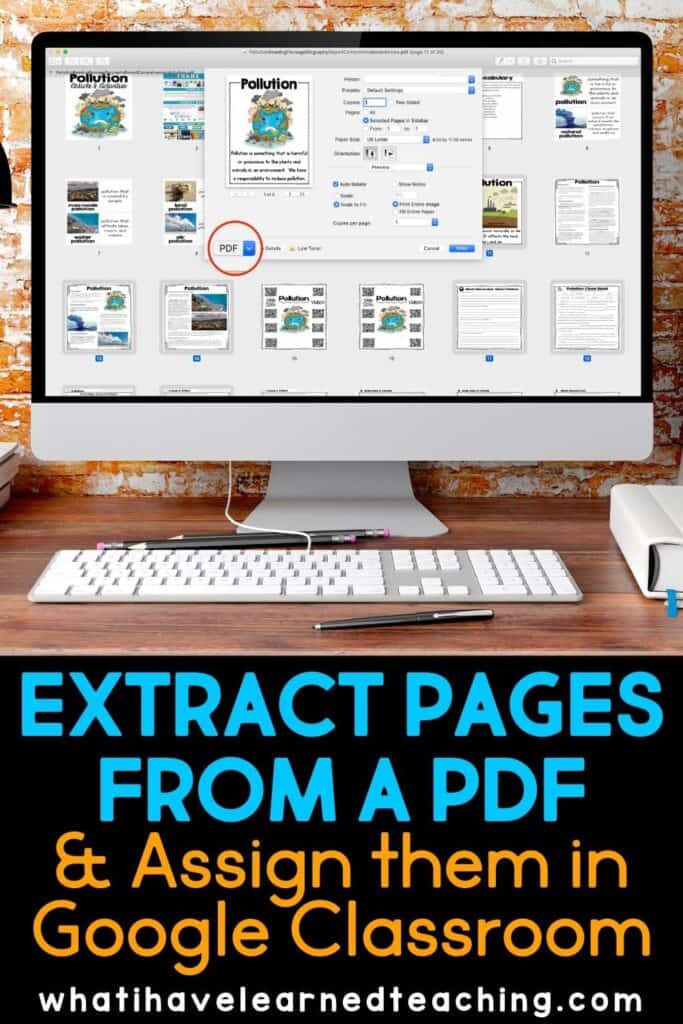
The following images show how to extract specific pages from a PDF using Preview on a Mac. You can use Preview or Adobe Reader to extract images. Preview is a little simpler to use. Here is a link with information on how to extract pages from a PDF in Adobe Reader and Adobe DC.
Here are the main steps to extracting pages from a PDF using Preview on a Mac.
Open the PDF and select the CONTACT SHEET view.

Select the slides you want to use. Use the COMMAND ⌘ key to select specific slides. Hold down the COMMAND ⌘ key and click on the images. You’ll see a gray box around them and the number will be highlighted (see below).
Select Print. Either use the keyboard shortcut (COMMAND ⌘ P) or FILE > PRINT.
In the print dialog box, select PAGES > SELECTED PAGES IN SIDEBAR.
Select FIT TO PAGE, if needed.
Click the PDF dropdown menu at the bottom.

In the PDF dropdown menu select SAVE AS PDF and save it to your computer.

Use this process to extract specific pages from PDFs so that students don’t have access to all the teacher pages or answer key. Also use it to assign specific pages on certain days, so that students don’t have access to all of the PDF at one time. Assign 1-2 pages on day 1, assign the next set on day 2, etc.
There’s a caveat. Some PDFs are locked and may not have this feature enabled, so it may not work with all PDFs. Below is a link to a video on how to take a screenshot of pages. Taking screenshots will likely be the next best thing if you have a locked PDF.
Extract Pages in Adobe Reader or Adobe DC
Here is a blog post that shows how to extract pages from a PDF using Adobe Reader and Adobe DC. If you have a PC Adobe Reader or Adobe DC will likely be the program you use.
Make a Screenshot of PDFs to Place into Google Slides
This video will show you how to make a screenshot of specific pages and page elements in a PDF and place them into Google Slides. In this way, you can create text boxes for students to write in their answers as well as movable pieces for them to circle answers.
In addition, you are shown how to take a screenshot of specific page elements and place those in as movable pieces in the Google Slide

When you are working in Google Slides, with either a digital resource that you have copied from the source or with Google Slides you have created, be sure to MAKE A COPY of your file to retain your original before you assign it to students.
You might also consider RENAMING YOUR COPY or original so that you know which is which. This way, if you accidentally mess something up, you have a clean copy.

Create an Assignment in Google Classroom
The last step is to create the assignment in Google Classroom. In this step, you will give students access to the Google Slides.
This post has many tips and tricks for using Google Classroom for distance learning. I’ve culled a few ideas and tips from teachers as well as included some top videos.

How to Create an Assignment in Google Classroom
When you are in Google Classroom, main steps of the process are to:
- Go to CLASSWORK, click CREATE > ASSIGNMENT
- Click ADD > GOOGLE DRIVE
- Find the digital resource on your Google Drive
- Select MAKE A COPY FOR EACH STUDENT
- Assign it to your class
Here is a short video on how to do it. I may have forgotten to click the button MAKE A COPY FOR EACH STUDENT in the video, so be sure to do that important step!
This blog post has photos and more information on how to assign a resource via Google Classroom. It also goes in-depth on how to review student work, add comments, and more.
There are a few steps involved in creating assignments in Google Classroom or creating and editing Google slides so that students can use them. Once you have done it a few times, you will have it memorized, and it will become second nature to you. For now, these tips and steps are here for you!
But wait, I have to Use SeeSaw for Distance Learning!
How do you extract pages in Seesaw? The process is VERY similar to Google Slides. The differences occur in how you use the Seesaw platform, importing photos and assigning it to students. My friend, Karen, did an awesome tutorial on how to use your existing PDF resources in Seesaw. Check it out here:


I’m a teacher creator as well, and I just want to thank you so much for this post and the videos. I do have a question though – Do you think it would just be easier for us to make our locked down (image) PowerPoint slides that we use to create Google Slides available instead of PDFs. The reason I’m wondering this is to help teachers be able to choose the slides they need without having to unlock a pdf.
My resources are mostly PDFs. I cannot recreate all of my PDFs into Google Slides quick enough to respond to the needs of teachers. This post is an easy place for me to guide teachers who need a quick and easy way to do it themselves. New resources that I’m creating now include Google Slides and Forms if they align with the resource. As a teacher-author, I would go the extra mile to create the Google Slides and insert the text boxes so that teachers don’t have to do that themselves.
I love this post!! Thank you! One more question. I have first graders. I’d like to send comprehension tests. Would students need to print the tests, complete them and then send them back? I am STRUGGLING with first grade comprehension!!
If you’re using Zoom, I would consider using small group meeting rooms and asking oral questions to assess comprehension or have students do retells. When in the classroom, I mostly assessed comprehension via interactions in small groups. I would try and mimic that as closely as possible with virtual learning. You could have students print out pages, but that adds an extra step that may be difficult for some parents.